
USB-A and USB-C are the two most common USB connectors in use today. One is everywhere. The other is taking over. But the difference between them goes much deeper than just the shape of the plug — and understanding it helps you buy the right cable, the right charger, and stop wondering why some devices charge fast and others crawl.

The Obvious Difference: Shape
USB-A is the flat, rectangular connector that has been standard for over 20 years. It only fits one way — you have almost certainly tried it the wrong way at least once. The asymmetrical design means there is a correct and incorrect orientation, and the incorrect one looks identical until you try to push it in.
USB-C is the small, oval, symmetrical connector on virtually every modern phone, laptop, and tablet. It is fully reversible — either orientation works every time. First try, every time. This alone makes a meaningful quality-of-life difference in daily use.
The Real Difference: What They Can Actually Do
| Feature | USB-A | USB-C |
|---|---|---|
| Reversible | No | Yes |
| Max charging power | ~18W most adapters | Up to 240W |
| Max data speed | USB 3.2: 20Gbps | USB4: 40Gbps |
| Video output | No | Yes — DisplayPort, HDMI |
| Laptop charging | Rarely | Yes |
| Audio output | No | Yes — with adapter |
| Future-proof | No | Yes |
| Connector size | Large | Small |
Power Delivery: The Biggest Practical Difference
This is where USB-A and USB-C diverge most dramatically in everyday use.
USB-A adapters typically deliver 5W to 18W. At 5W — the standard for most older USB-A chargers — a modern iPhone takes over 3 hours to charge from empty. At 18W with USB-A Quick Charge, it takes around 1.5 hours. That is the ceiling for USB-A.
USB-C with Power Delivery changes the equation entirely:
- 20W to 30W: Fast charge for modern iPhones and Android phones — 0 to 50% in about 30 minutes
- 45W to 65W: Fast charge for tablets and entry-level laptops
- 100W to 140W: Full-speed charging for MacBooks and mid-range Windows laptops
- 240W: The newest standard — handles even the most power-hungry gaming laptops that previously needed proprietary barrel connectors
The device and charger negotiate automatically — your phone will never receive more power than it can safely accept from a higher-wattage charger. Plug a 100W USB-C charger into an iPhone that supports 27W and it delivers exactly 27W. No damage, no overcharge.
Shop PowerPort 100 — 4-Port 100W USB-C Adapter →
Shop PowerPort 30 — Compact 30W USB-C Adapter →
Data Transfer: When Speed Actually Matters
For everyday charging, data transfer speed is irrelevant. But when you are moving large files — backing up your phone, transferring video footage, using an external SSD — the difference between USB-A and USB-C is significant.
USB-A 3.0 (the blue ports on most computers) transfers at 5Gbps. USB-A 3.2 tops out at 20Gbps. Both are limited by the physical connector's bandwidth ceiling.
USB-C with USB 3.2 Gen 2 delivers 10Gbps. USB-C with USB4 delivers 40Gbps — transferring a 10GB video file in about 2 seconds rather than the 20+ seconds a USB-A 3.0 connection would take.
For most people transferring phone photos, music, or documents, the difference is minor. For anyone working with large video files, external drives, or 4K content, USB-C speed is a genuine practical advantage.
Video Output: A USB-C Exclusive
USB-C supports DisplayPort Alt Mode, which allows the connector to carry a full display signal. This means a single USB-C cable can connect a laptop to a 4K or 8K monitor while simultaneously charging it and transferring data — all through one port.
USB-A cannot do this. Not at all, with any cable or adapter. Video output through USB-C is a hardware capability built into the port itself, and it is one of the reasons new thin laptops have dropped USB-A entirely.
Do You Still Need USB-A?
Yes — for now, and probably for several more years. Here is why:
Billions of USB-A accessories exist. Keyboards, mice, gaming controllers, USB flash drives, older phones, car chargers, laptop docking stations, and countless other devices still use USB-A. The installed base is enormous and will not disappear quickly.
Most wall adapters still have USB-A ports. Even if your phone uses USB-C, many home chargers have USB-A ports you can use with a USB-A to USB-C cable. These do not fast charge but they work.
USB-A to USB-C cables bridge the gap. You do not need to replace every charger when upgrading to a USB-C device. A USB-A to USB-C cable connects your new phone to older adapters perfectly well for standard charging.
The practical reality for most households in 2026: you need both. USB-C for your primary fast charging and new devices. USB-A for legacy accessories, older family members' devices, and situations where only USB-A is available.
Why New Laptops Are Dropping USB-A
Thin laptops — MacBook, Dell XPS, Microsoft Surface, and most ultrabooks — have removed USB-A ports entirely. This is not an oversight. It is a deliberate engineering decision driven by three factors:
- Physical size: USB-A's large rectangular port requires significant internal space. USB-C's compact oval port takes up far less room in thin chassis designs.
- Capability consolidation: A single USB-C port replaces what previously required separate HDMI, DisplayPort, power, and USB-A ports.
- Future standard: USB4 and Thunderbolt 4 — the fastest data standards available — only exist on USB-C. There is no USB4 in a USB-A form factor.
If you have a laptop that only has USB-C ports, a USB-C hub or dock adds USB-A ports, HDMI, SD card slots, and more from a single connection.
Which Cable Should You Buy?
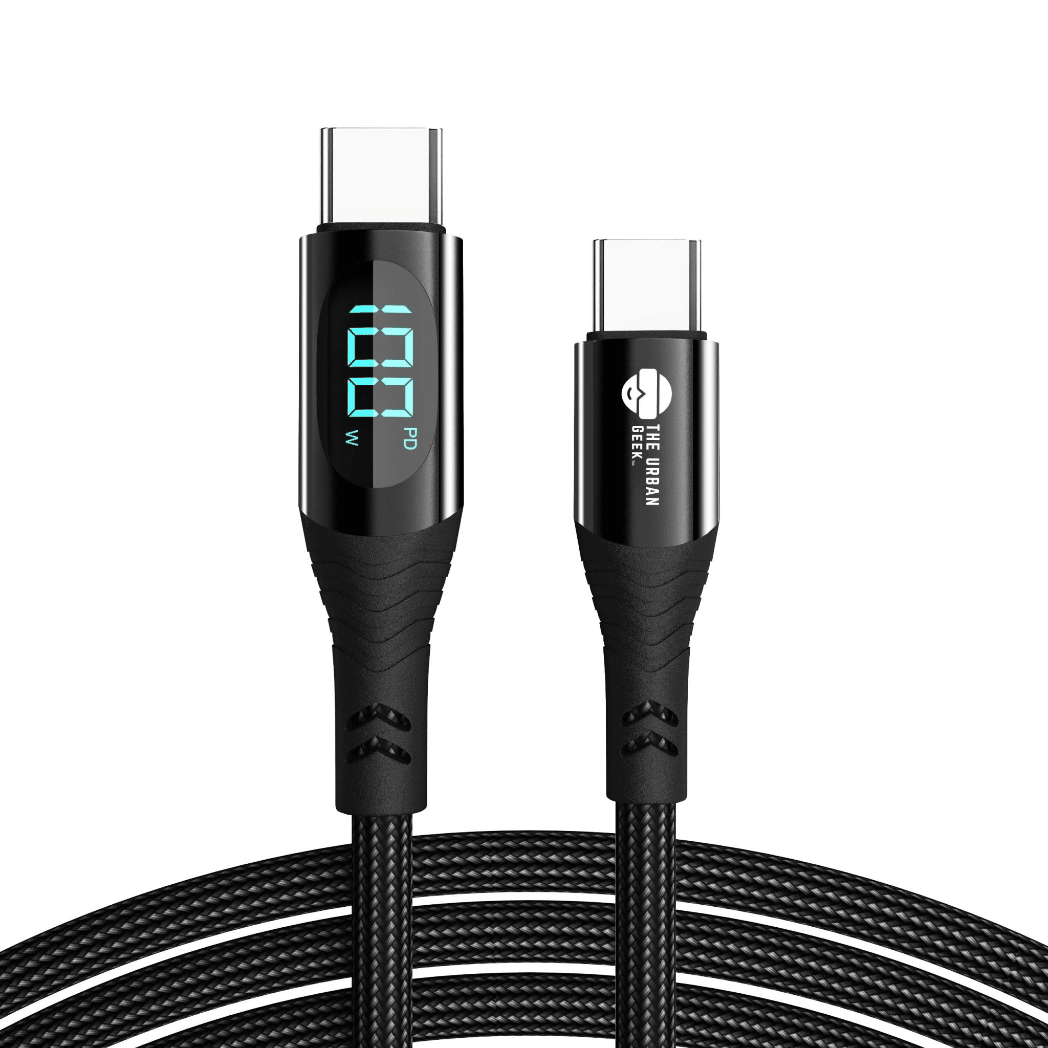
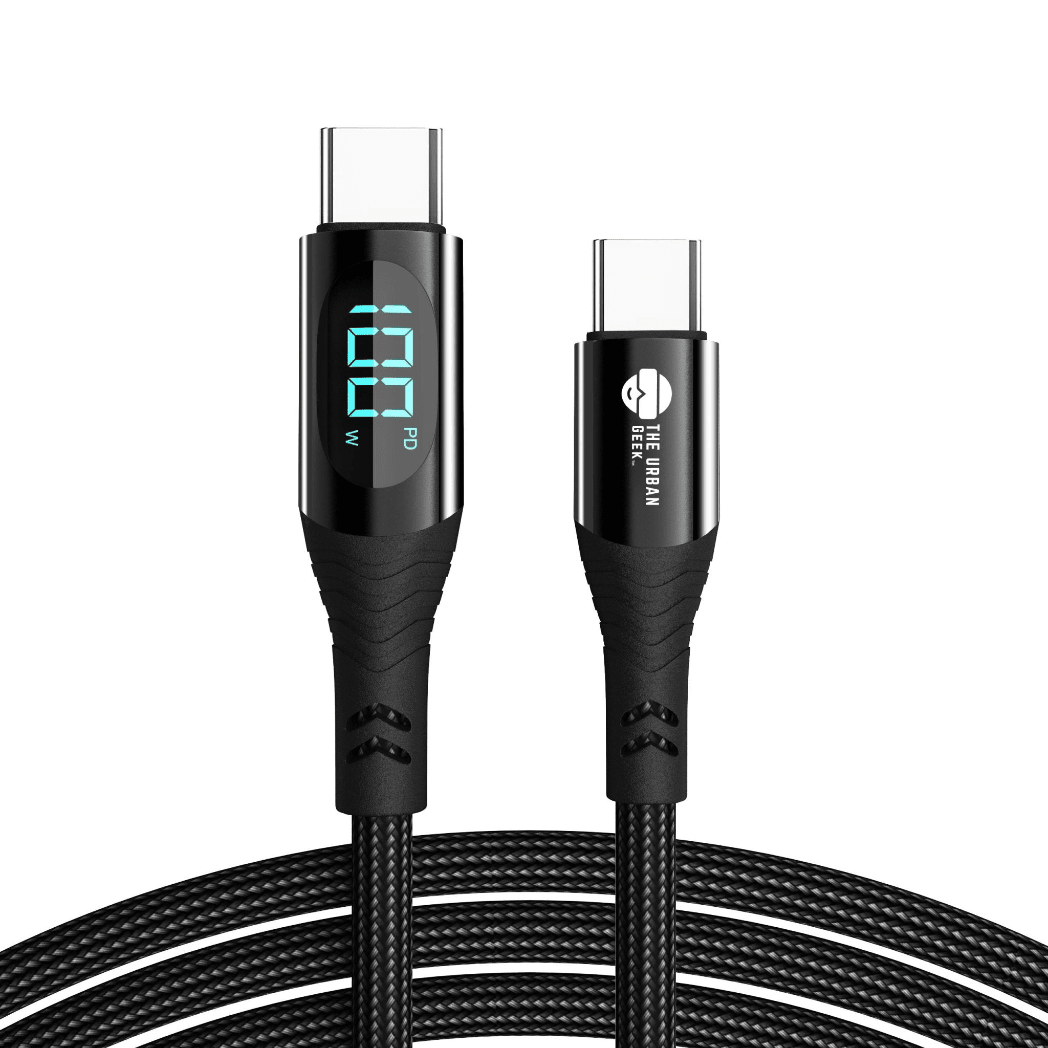
For everyday phone and device charging: USB-C to USB-C cable with Power Delivery. This is the fastest, most versatile option for any modern phone, tablet, or laptop. The Link Core USB-C cable supports 100W and 140W for full-speed charging across all your devices.
For laptop charging: Check your laptop's wattage requirement first. Most laptops charge at 65W to 100W. High-performance MacBook Pros and gaming laptops may need 140W or 240W. Match the cable wattage to or above the laptop requirement.
For mixed households with both old and new devices: A 3-in-1 cable with USB-C, Lightning, and Micro-USB tips covers every device in one cable. The Link Trio handles the entire household from a single drawer.
For USB-A chargers with a USB-C phone: A USB-A to USB-C cable lets you use older adapters with newer devices. Expect standard charging speeds rather than fast charging from USB-A adapters.
Shop Link Core USB-C Cables (100W / 140W) →
Shop Link Pro 240W USB-C Cable →
The Bottom Line
USB-A is not going away anytime soon — but USB-C is clearly the future. If you are buying new cables today, buy USB-C. If you have older USB-A accessories, keep using them. A mix of both in your setup is the practical reality for most people through the rest of this decade.
The most important thing to understand: not all USB-C cables are equal. The oval connector is a shape standard, not a performance standard. A USB-C cable can support anything from 5W to 240W and 480Mbps to 40Gbps depending on what is inside it. Always check the wattage and data speed rating before buying, not just the connector shape.
Read: Why Cable Quality Matters More Than Charger Wattage →
Read More from The Geek Blog
- Types of USB Cables Explained →
- What is USB-C? The Plain English Guide →
- What is a 240W USB-C Cable? →
- Lightning vs USB-C: Why Apple Switched →
Frequently Asked Questions
Can I still use USB-A cables and accessories?
Yes — USB-A is still widely used and will remain relevant for years. Most wall adapters, older computers, and many accessories still use USB-A ports. USB-A to USB-C cables bridge the gap between older adapters and newer devices.
Is USB-C faster for charging than USB-A?
Yes, significantly. USB-A ports typically deliver 5W to 18W. USB-C with Power Delivery delivers up to 240W. At 20W USB-C PD, a modern iPhone charges from 0 to 50% in about 30 minutes — a task that takes over an hour at 5W USB-A.
Why do new laptops only have USB-C ports?
USB-C's combination of high power delivery, fast data transfer, and video output in one compact connector makes it ideal for thin modern laptops. USB4 and Thunderbolt 4 — the fastest standards available — only exist on USB-C, not USB-A.
Do I need a USB-C adapter for my older USB-A accessories?
You can use a USB-A to USB-C adapter or cable for most accessories. For frequently used accessories like external drives or hubs, a USB-C native version delivers faster speeds. For simple things like keyboards and mice, USB-A works fine indefinitely.
Is USB-A being phased out?
Gradually. Most new premium laptops, phones, and tablets use USB-C exclusively. USB-A still appears on budget devices, wall adapters, and peripherals and will likely remain relevant for another 5 to 10 years due to the enormous installed base of accessories.
Can a USB-A port charge a USB-C device?
Yes, using a USB-A to USB-C cable. Charge speed is limited by the USB-A port's wattage — typically 5W to 18W. For fast charging, use a dedicated USB-C PD charger directly rather than going through a USB-A port.
What is USB-C Power Delivery?
USB-C Power Delivery (PD) is the protocol that allows USB-C chargers and cables to negotiate how much power to deliver — from 5W up to 240W. The device requests what it needs, the charger delivers it, and the cable carries it safely. It is what makes USB-C capable of charging everything from phones to high-performance laptops.
Can USB-C replace HDMI for connecting to a monitor?
Yes — USB-C with DisplayPort Alt Mode or Thunderbolt carries a full video signal to 4K and 8K monitors. A single USB-C cable can charge your laptop, transfer data, and drive a 4K display simultaneously. USB-A cannot do any of this.